GlobalProtect VPN: Installation Windows
To Install GlobalProtect VPN Client For Windows:
1. Go to the Downloads folder and double click on either GlobalProtect.msi or GlobalProtect64.msi, depending on whether you’re using 32-bit or 64-bit version of Windows.
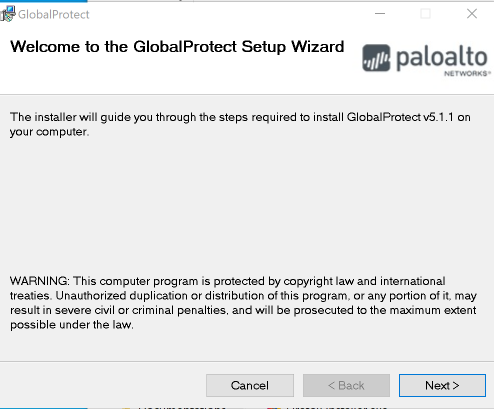
2. Click Next on the Welcome screen:
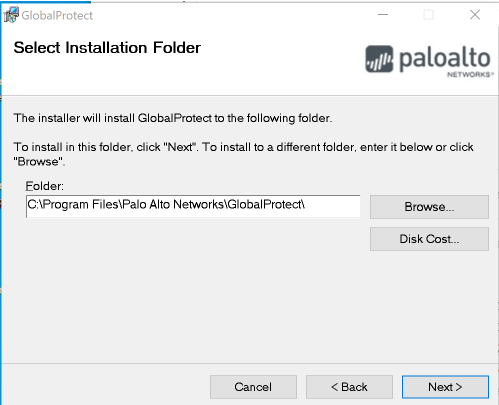
3. Take the default installation folder and click Next:
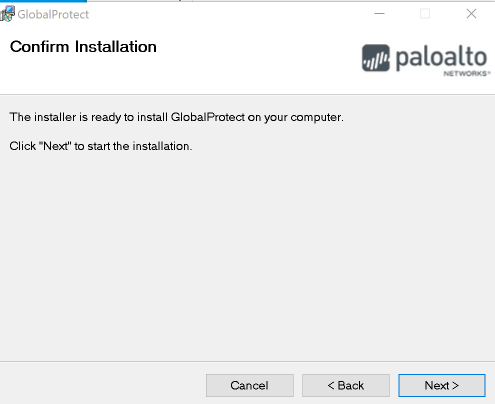
4. Click Next to start the installation:
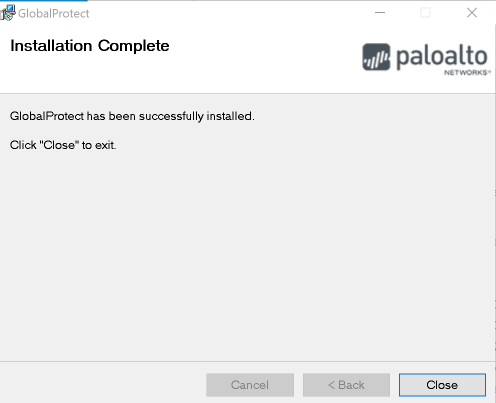
5. Click Close to finish the installation:
6. To use GlobalProtect VPN on Windows, see: Using GlobalProtect VPN Client for Windows
For MacOS directions on how to install GlobalProtect VPN, please refer to this GROK article: GlobalProtect VPN: Installation MacOS
20405
9/28/2026 3:36:16 PM