Wireless: Troubleshooting Connection Issues (Windows)
Problem:
The Windows Client Cannot Connect to eduroam
On certain Windows computers, the AAA Certificate Services was not included in the certificate store of the original installation media. Without this certificate, Windows client cannot connect to eduroam because it could not verify the authenticity of the wireless connection. Typically, Windows clients drop the wireless connection with no or very generic error messages immediately after the users enter their credentials. This issue affects all versions of Windows.
Solutions:
Forget And Manually Add Eduroam
On Windows 11, some users get the message “Can’t connect to this network” immediately after entering in their credentials and click Connect on eduroam.
Furthermore, the icon for the eduroam wireless network looks like this:
o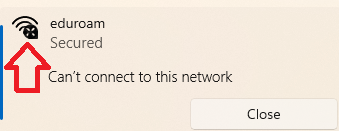
To Resolve "Can't Connect to This Network" Error:
- Go to Settings (not Control Panel), choose Network & Internet, then select Wi-Fi.
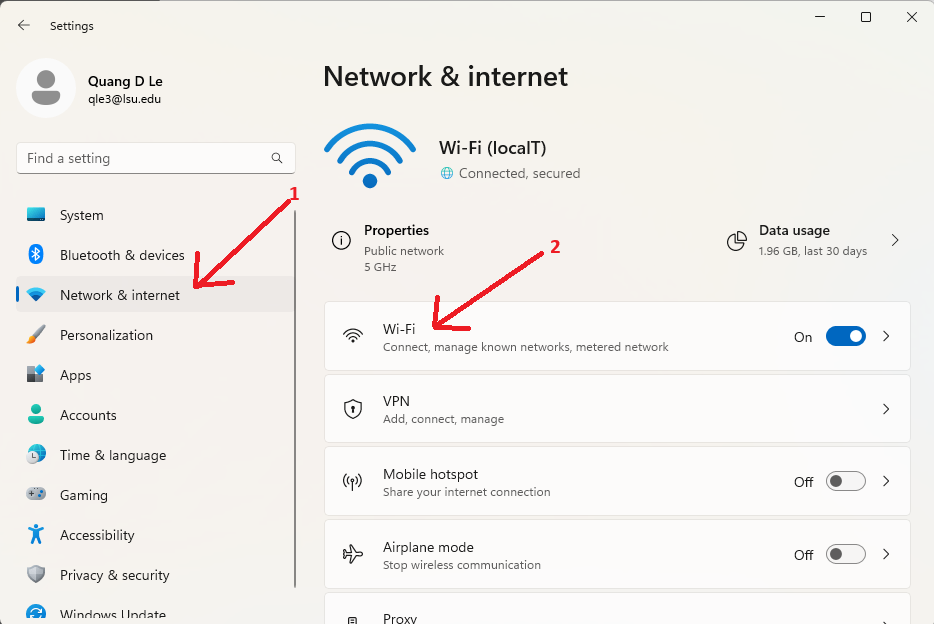
- Under the Wi-Fi section, click on Manage known networks. Find eduroam on the list of known networks and click the Forget button.
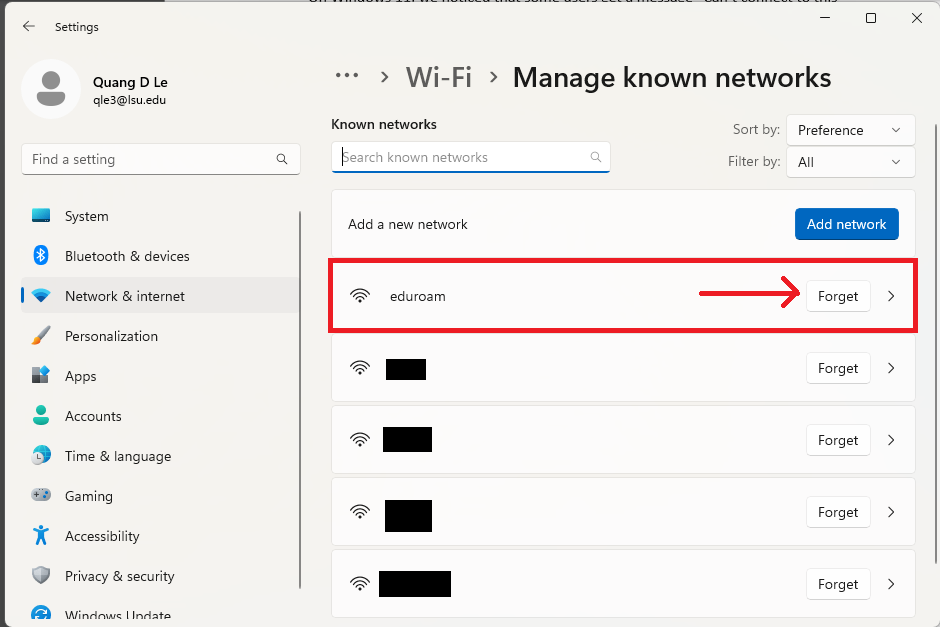
- After forgetting the eduroam network, click on the blue Add network button:

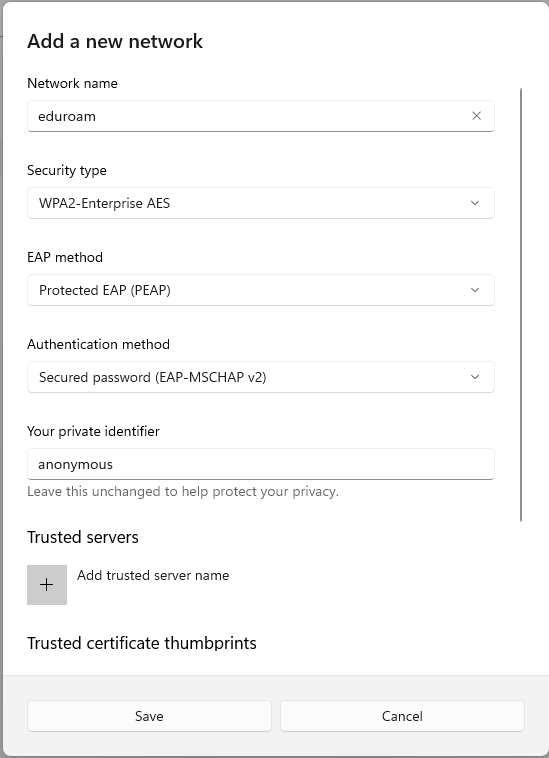
- In the Add a new network window, enter the following information as it is shown below. It must be exactly as shown, or the connection will not be successful.
- Network name: eduroam
- Security Type: WPA2-Enterprise AES
- EAP Method: Protected EAP
- Authentication method: Secured password (EAP-MSCHAP v2)
- Leave everything else as-is and click the Save button.
- After manually adding the eduroam network in the steps above, connect to eduroam again. Please remember to include the @lsu.edu to the end of your myLSU ID (example: mtiger1@lsu.edu)
If this does not work, please try:
Manually Importing the AAA Certificate Services into the Windows Certificate Store
NOTE: This process may require a thumb/flash drive into order to place the download onto the computer without internet.
1. Download and save the AAA Certificate Services file:
2. Browse to the location where the aaa_root.cer file was downloaded:
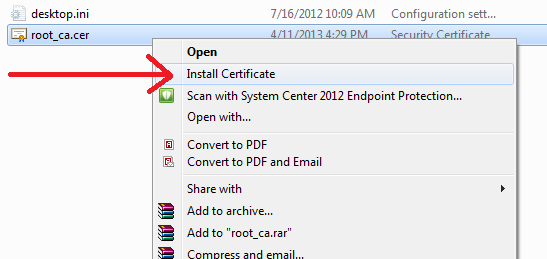
- Right-click on aaa_root.cer.
- Click on Install Certificate.
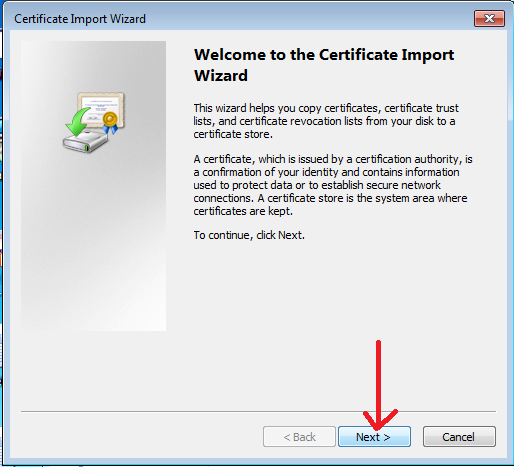
3. On the bottom right corner, click Next on the welcome screen of the Certificate Import Wizard.
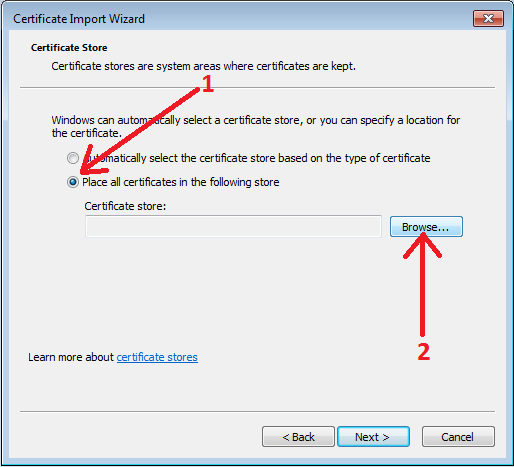
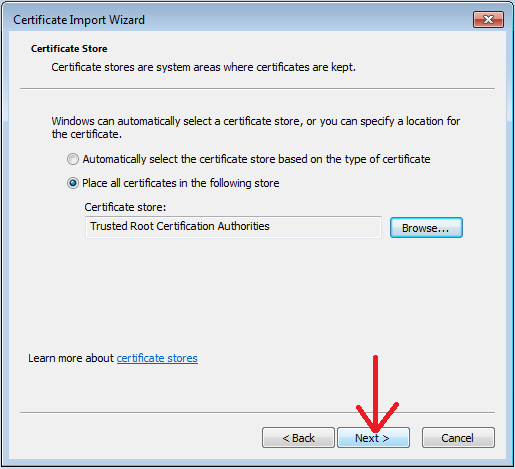
4. In the middle of the screen, select "Place all certificates in the following store"(1) radio button, and click Browse...(2).
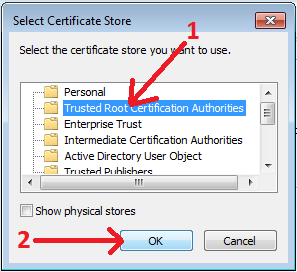
5. In the Select Certificate Store popup window, click to select Trusted Root Certification Authorities(1) and click the OK(2) button at the bottom of the window.
6. On the bottom of the window, click Next on the main Certificate Import Wizard window.
7. On the bottom right hand corner, click Finish.
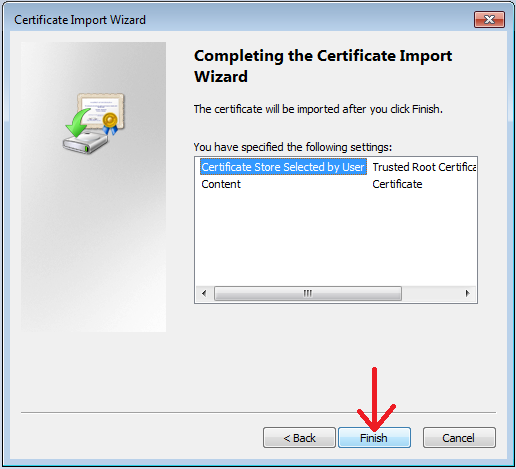
8. Attempt to connect to eduroam again.
If the problem persists, please contact the ITS Service Desk at 578-3375 or servicedesk@lsu.edu.
16992
12/16/2025 2:43:31 PM